
Server settings
To use Exment, first you need to set up the web server and database. Follow the procedure below to make the settings depending on your environment.
* Currently, we are very sorry, but we are not accepting individual inquiries regarding the installation procedure or server construction. If you would like individual support, please request paid support.
In addition, we do not currently have manuals for environments other than the following. Please note.
Web server
This is the procedure for building a web server. Follow one of the steps below to build a web server.
※XAMPP is recommended when building an environment with PHP, Apache, and MySQL from the beginning as a development environment.
XAMPP construction (development / verification environment) Windows
→ First of all, if you want to install Exment on your personal computer (Windows version)XAMPP construction (development / verification environment) Mac
→ First of all, if you want to install Exment on your PC (Mac version)Rental server construction
→ If you want to publish the Exment and easily access it from other members or smartphonesBuild on Linux
→ Procedure for installing Exment on Linux (CentOS Stream) ※For those who built it on CentOS 8, please refer to hereBuild on IIS
→ Procedure when building Exment on IISBuild on AWS
→ Procedure when building Exment on AWSBuild with Docker
→ Procedure when building Exment with Docker
File permission settings
Of the Exment project folders, the following folders and files require write permission for the user running the web server (apache, www-data, etc.).
| type | File / folder name | Required functions |
|---|---|---|
| folder | storage | Full function |
| folder | bootstrap/cache | Full function |
| file | .env | Easy installation and restore |
| folder | config | Easy installation and restore |
| folder | app | Easy installation |
| folder | public | Easy installation |
| folder | resources | Easy installation |
* Easy installation authority is required only at the time of installation. If you want to set the permission more strictly, delete the write permission of the folder after executing the simple installation.
Automatic generation of initial folders
- The initial folder structure can also be generated automatically with the following command.
- --user=(User name. If not specified, an input prompt is displayed after execution)
- --group=(Group name. If not specified, an input prompt is displayed after execution)
- --easy=(1 when installing Exment with easy installation. The default is 0)
- --easy_clear=(1 when you want to return the folder permissions to the appropriate ones after easy installation. The default is 0)
php artisan exment:setup-dir {--user=} {--group=} {--easy=0} {--easy_clear=0}

# For manual installation
php artisan exment:setup-dir
# For easy installation
php artisan exment:setup-dir --easy=1
# To return the folder permissions to the original ones after easy installation is completed
php artisan exment:setup-dir --easy_clear=1
Introduced composer
Exment requires composer to be installed on the web server. composer is used to install the packages required for Exment and to update Exment.
Please refer to the following URL for the installation method.
- Official site
- Windows version commentary site
- Linux version commentary site
- Mac version commentary site
Database
Exment's database engine requires one of the following:
- MySQL 8.0 or higher
- MariaDB 10.11 or higher
- SQL Server 13.0.0 or higher (Currently, automatic backup / restore is not supported)
Database environment construction
If you have not set up the database server yet, please build the database server. Please check the link below for the construction method.
* Not required if already installed.
Create database
- Create a database for Exment with each database engine.
Operating environment
server
- PHP 8.2 or higher (
^8.2.0. Exment 7.0.0 uses Laravel 12, which requires PHP 8.2 or higher) - Laravel 12.X (Laravel version changed to 12.X from Exment 7.0.0)
- ※ For Exment v6.x: PHP 8.2, Laravel 10.X.
- Database: One of the following
- MySQL 8.0 or higher
- MariaDB 10.11 or higher
- SQL Server 13.0.0 or higher
- PHP's gd extension built with FreeType (
imagettftextavailable): used for the 2D barcode label PDF. Without it, making the label PDF fails with an error. See 2D Barcode settings for how to check and install it.
Operation check browser
- Google Chrome
- Microsoft Edge
Recommended settings
- Maximum PHP memory allowance: 512MB
- Maximum file upload: 10MB
- Timeout time: 180 seconds
Check system requirements
You can check system requirements and server settings from the screen or commands.

Confirmation method
You can check the system requirements, etc. by the following methods.
- Installation page for easy installation
- After installation, system setting page
- command. Details below
Confirmation item details
Memory usage limit
The upper limit of memory usage allocated to run PHP.
Please check here for how to change the settings.
File upload size limit
The maximum file size for uploading files. The size you need depends on the requirements of the files you want to manage.
Please check here for how to change the settings.
Timeout time
The number of seconds to wait for processing and time out. If this time is short, it may exceed this time for time-consuming processes such as backup and import.
Please check here for how to change the settings.
File permissions
Check the file permissions required to run Exment.
Please check here for more information.
Composer installation
Check if the Composer used to update the Exment is installed on your web server.
* A warning may be displayed even though composer is actually installed. This is because the composer path is not passed by the user who runs the web server, or the authority is insufficient.
If composer is successfully installed and can be run by the user who actually performs the update, ignore this warning.
* In order to pass through the composer, please verify here "To pass the composer path".
Backup / Restore
Confirm that the server settings for executing backup / restore are complete.
* If you made an error, please check here the "fail to backup and restore".
* If you are using SQL Server, you will always be warned. Manual backup or restore is required. Please check here for the procedure.
Result display
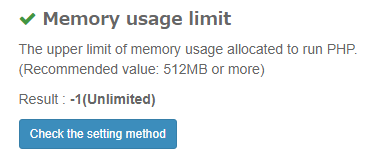
Normal
It is displayed with a green check.

Click the row to see the details.
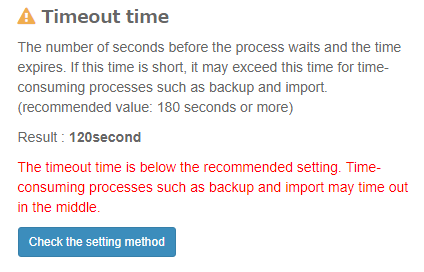
Warning
A yellow warning mark is displayed. The setting method is recommended, or some points need to be noted in operation.
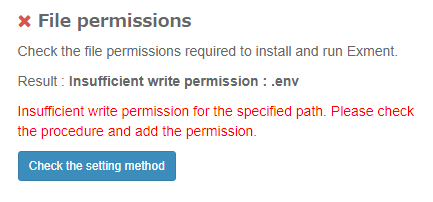
Error
A red cross mark is displayed. It is necessary to change the settings.
Execute from command
You can also check the system requirements from the following command.
php artisan exment:checkrequire