
Data import / export (command)
Import and export the data of each table saved in Exment from the command.
For an overview of data import / export, see here.
Data export
Export (output) the data of each table saved in Exment from the command.
The output data format is compatible with csv and xlsx.
Method of operation
- Execute the following command on the command line.
php artisan exment:export (table name)

#Example
php artisan exment:export information- By executing the above command, csv data will be output to the folder "(Exment root folder)/storage/app/export/(execution date: yyyyMMddHHiiss)".
Command arguments
php artisan exment:export (table name) {--action=default} {--type=all} {--page=1} {--count=} {--format=csv} {--view=} {--dirpath=} {--add_setting=0} {--add_relation=0} {--add_comment=0}table name
(Required) The table name (alphanumeric characters) to be output.
action
(Optional) How to perform the export.
- default: Output all system columns and custom columns. Default value.
- view: Output in the specified view format.
type
(Optional) The type (number) of data to export.
- all: All data. Default value.
- page: The specified page.
page
(Optional) Page number if type is page. integer. If not specified, the first page is output.
count
(Optional) If type is page, the maximum number of data items to output.
If not specified, the number of data items specified in the target view.
format
(Optional) The file format to export.
- csv: CSV format. Default value.
- xlsx: Xlsx (Excel) format.
view
(Optional) The view to output. Specify by id or suuid.
If not set, output in all views.
dirpath
(Optional) The folder path to export.
full path. If not set, (Exment root folder)/storage/app/export/(Execution date: yyyyMMddHHiiss).
add_relation
(Optional) Whether to output relation data as well.
The default value is 0 (no output).
add_setting
(Optional) Whether to output setting data as well.
The default value is 0 (no output).
add_comment
(Optional) Whether to output the comments of each data as well.
The default value is 0 (no output). If 1 is specified, the comments are output to the sheet "comment" (for CSV format, the file "comment"). Valid only when action is default and the "Use Comment" setting of the table is YES.
# Example: export in Xlsx format, with the comments
php artisan exment:export information --format=xlsx --add_comment=1
Data export (chunk mode)
Data is divided and output for each specified number (default value: 1000). When outputting a large amount of data, you can reduce the number of lines in one file.Method of operation
- Execute the following command on the command line.
php artisan exment:chunkexport (table name)

#Example
php artisan exment:chunkexport information- By executing the above command, csv data will be output to the folder "(Exment root folder)/storage/app/export/(execution date: yyyyMMddHHiiss)".
Command arguments
exment:chunkexport {table name} {--action=default} {--start=1} {--end=1000} {--count=1000} {--seqlength=1} {--format=csv} {--view=} {--dirpath=}table name
(Required) The table name (alphanumeric characters) to be output.
action
(Optional) How to perform the export.
- default: Output all system columns and custom columns. Default value.
- view: Output in the specified view format.
start
(Optional) Number to start output.
If the export ends in the middle, you can restart the export from the specified serial number. If not specified, 1.
end
(Optional) Number to end output. 1000 if not specified.
count
(Optional) Maximum number of data items to output to one file. 1000 if not specified.
seqlength
(Optional) The number of zero-padded serial numbers.
As an example, if you enter "3", the serial numbers will be output as "001", "002". If not specified, 1.
format
(Optional) The file format to export.
- csv: CSV format. Default value.
- xlsx: Xlsx (Excel) format.
view
(Optional) The view to output.
Specify by id or suuid. If not set, output in all views.
dirpath
(Optional) The folder path to export. full path.
If not set, (Exment root folder)/storage/app/export/(Execution date: yyyyMMddHHiiss).
Output specifications
- The file name is output as a serial number, such as "(custom table name).serial number.csv" (example: client.1.csv).
#Example
client.1.csv
client.2.csv
client.3.csv

#Example (when seqlength = 3 is specified)
client.001.csv
client.002.csv
client.003.csv- The maximum number of files in one execution is 1000 regardless of the number of data or the count option.
Data import
Batch data from files in the specified folder to the custom table of Exment. ※The files that can be used are EXCEL files or csv files in the same format as those imported from the screen. ※You can enter more than 5000 data that is limited on the screen.
important point
CSV files compressed in ZIP format are not processed.
Since error checking is performed in the same way as importing from the screen, it may take a very long time if a large amount of data is input.
Imported data is processed in units of 100. Register the first 100 items normally → If there is a defect in the data in the next 100 items, the file processing will be canceled at that point.
The 100 already registered items cannot be undone. Please respond by manually deleting or removing the registered data from the file.
Data preparation
First, create a file for import. For details, see here.
※The file name is "(custom table name).csv" (example: client.csv). Since the files in the folder are imported in order of name, you can also add a serial number at the beginning like "serial number#(custom table name).csv" (example: 001#client.csv).
※The character code of the csv file that can be imported is UTF-8 .
Method of operation
- Create a working folder in the following path on the server.
It is recommended that the folder name be something that shows the contents of this work, the date, etc.
(Project root directory)/storage/app/import/(folder name)- Place the created csv file or EXCEL file (s) in the above folder.
Folder layout example
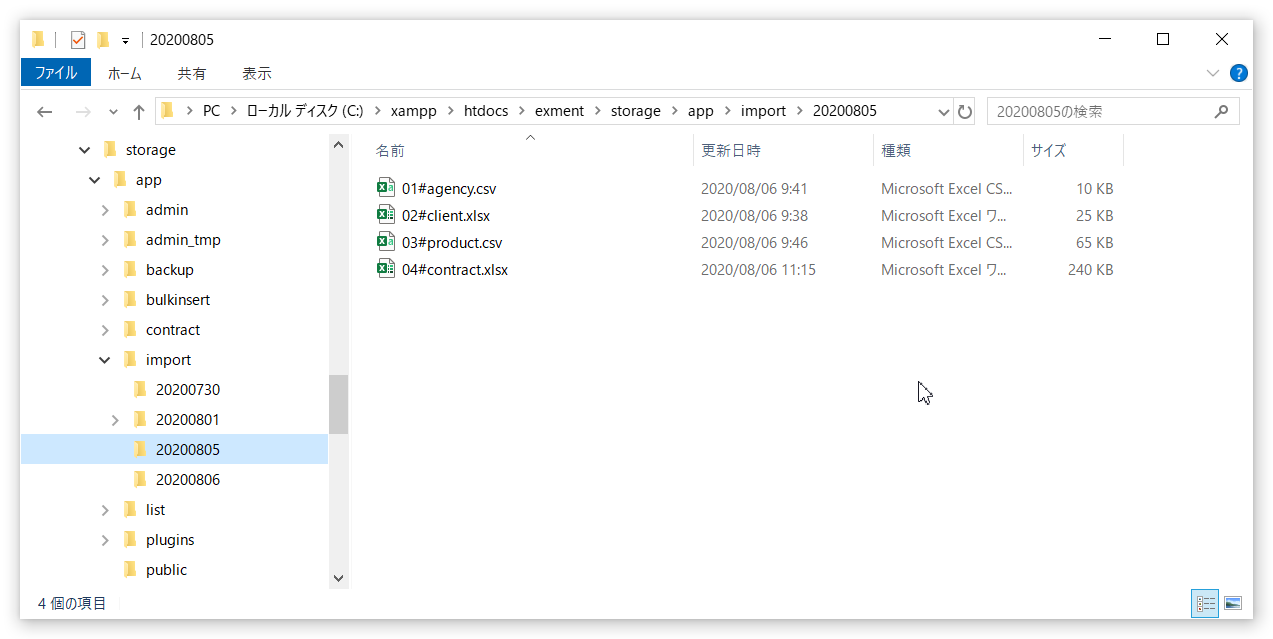
- Execute the following command on the command line.
php artisan exment:import {folder name}Command execution example
