
Security check
Checks the settings that keep this site safe. "Settings: System" > "Security Check" (the URL is /security_check) lists them with their state now.
※This page is available in Exment v7.2.1 or later.
※Only system administrators can see it.
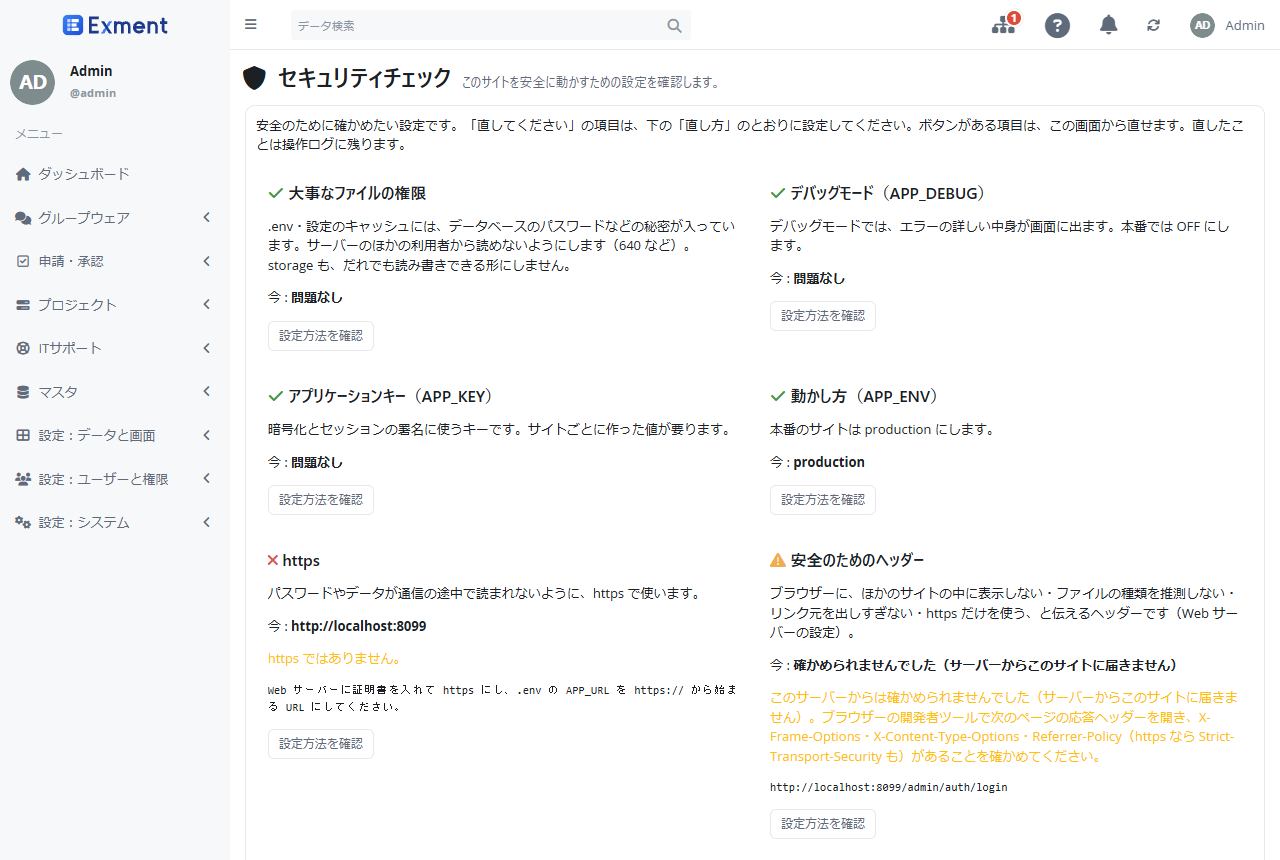
Reading the page
- Each item shows ✓ when it is fine, ✕ when it should be fixed, and ⚠ when this server could not check it.
- For an item to fix, follow the "How to fix" shown under it.
- The items with a button can be fixed from this page. What was fixed goes to the operation log.
- "Check how to set it" opens how to set the item.
- Ask the server administrator to change the server settings (web server, php.ini, .env).
At the install too, the "System requirements" page lists the server items that should be fixed (read only; it never stops the install).
Items
| Item | What it checks |
|---|---|
| Permissions of important files | .env and the config cache hold secrets such as the database password. Make them unreadable by the other users of the server (e.g. 640). Do not make storage readable and writable by everyone |
| Debug mode (APP_DEBUG) | In debug mode, the details of errors are shown on the page. Turn it off in production |
| Application key (APP_KEY) | The key for encryption and the signature of sessions. Each site needs its own value |
| Environment (APP_ENV) | Set production for a production site |
| https | Use https so passwords and data are not read on the way. Put a certificate on the web server and make APP_URL in .env start with https:// |
| Security headers | The headers that tell browsers not to show the site inside another site, not to guess file types, not to send too much referrer, and to use https only (X-Frame-Options, X-Content-Type-Options, Referrer-Policy, Strict-Transport-Security). Set them on the web server |
| What must not be seen from outside | .env, .git, storage and vendor must not open in a browser (403 or 404) |
| Password of system administrators | Do not keep the first password, or a password equal to the user code. Change it in "Settings" of the user menu at the top right |
| Two-step authentication | Confirm a login with a code from mail or an authenticator app, besides the password (Login setting) |
Examples of the security headers
Add these lines to the web server. Then reload the web server (an Apache .htaccess works as it is), and check again on this page.
# nginx (in server { })
add_header X-Frame-Options "SAMEORIGIN" always;
add_header X-Content-Type-Options "nosniff" always;
add_header Referrer-Policy "strict-origin-when-cross-origin" always;
# only with https
add_header Strict-Transport-Security "max-age=31536000" always;
# Apache (at the top of public/.htaccess of Exment, or in the Apache config; needs mod_headers)
<IfModule mod_headers.c>
Header always set X-Frame-Options "SAMEORIGIN"
Header always set X-Content-Type-Options "nosniff"
Header always set Referrer-Policy "strict-origin-when-cross-origin"
# only with https
Header always set Strict-Transport-Security "max-age=31536000"
</IfModule>- Add Strict-Transport-Security only to a site used with https. With it, browsers open the site only with https for one year.
- In nginx, when a
location { }has its ownadd_header, write the same lines in thatlocationtoo (withadd_headerinside, the outer ones are not used). - On a rental server (Xserver, etc.), write them in .htaccess.
When it says "could not check"
The security headers and what must not be seen from outside are checked by the server asking its own site. Where the server cannot reach its own site (inside Docker, behind a firewall, etc.), they cannot be checked. Open the addresses shown on the page in a browser on a computer outside the server instead.