
Document output (Docurain)
PDF output is performed using the cloud form engine ** Docurain **, which enables form development using only Excel and json.
For output in Excel format, refer to here.
What is Docurain?
Docurain is a cloud form engine that allows you to develop forms using only Excel and json.
Forms with various layouts can also be created from Excel file templates, and PDF format output is also supported.
Click here for the Docurain site
Docurain is a service developed and operated by Route 42 Co., Ltd. A license token is required to use it. It will be billed on a pay-as-you-go basis for each form output. (Trial tokens can be issued.) Kajitori Co., Ltd., the development and operation company of Exment, is a distributor of Docurain. For trial requests, applications, and inquiries, please contact us from here.
Execution method
Download this plugin.
Upload as an Exment plugin. Please refer to here for the procedure.
After uploading, click the Docurain plugin line to enter the plugin settings screen.

Enter the following contents.
Target table: The target table to execute Docurain

- Token: Docurain execution token. For token issuance, please contact us at here.

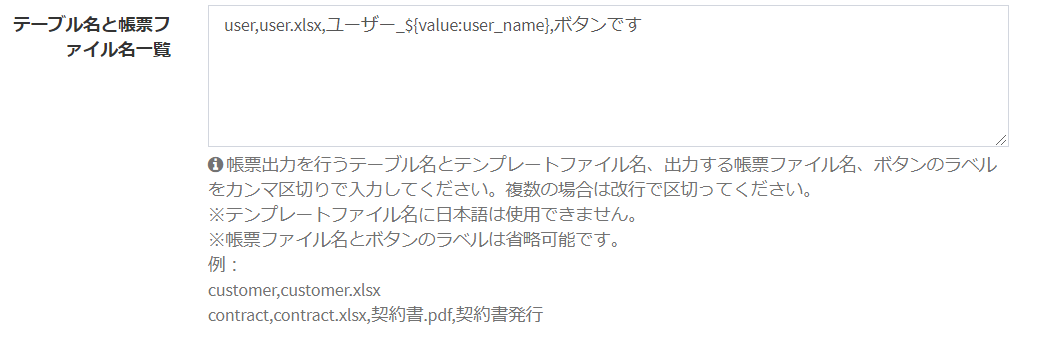
- Table name and form file name list: Enter the table name and template file name to output the form, the form file name to be output, and the button label separated by commas. If there are multiple lines, separate them from line breaks.
※Japanese cannot be used in the template file name. (Can be used for form file names and button labels)
※If the form file name is omitted, it will be the template file name.
※If the button label is omitted, the label will be the one set for all plug-ins.
※Parameter such as date can be included in the form file name.
- Place the Excel file that is the source of the form in the "documents" folder in the unzipped folder.
When creating multiple forms with Docurain, place multiple Excel files in documents.
※The folder path will be "(project root folder) / storage / app / plugins / Docrain / documents".
※For how to create a form, see "How to create a form" below.


- By making the settings up to this point, the button will be displayed in the table selected in "Target table".

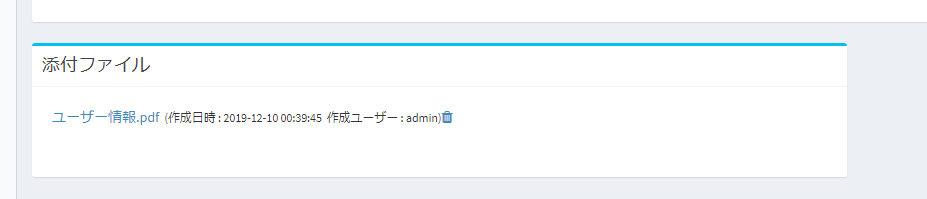
- Click the button to create the form.
Template Excel file creation
Create an Excel file that will be the source of the form.
※Japanese cannot be used in the name of the Excel file. Please be sure to use xlsx as the extension.
※The parameters of the template file are different from the normal Exment parameter description method, and a Docurain-specific description method is required.
Parameters
Parameters to be set in the template Excel file.
By entering a variable of a specific format in an Excel cell, it will be converted to various values when the form is output.
System value
| Item | Description |
|---|---|
| % {system.site_name} | System site name |
| % {system.site_name_short} | System site name (short) |
| % {system.system_mail_from} | System source |
| % {system.system_url} | System home URL |
| % {system.login_url} | System login URL |
data
| Item | Description |
|---|---|
| % {id} | The ID of the target data is set. (Example: 123) |
| % {suuid} | The suuid (Short UUID. 20-digit random character string) of the target data is set. |
| % {value_url} | A link to display the target data is set. |
| % {value. (Column name)} | The value of the column of the target data is set. (Example: If you enter% {value.user_code} for user data, the user code will be set) |
| % {select_table. (Column name). (Column name of referenced table)} | The column corresponding to "Column name" is "Choice (select from the value list of other table)" "User" "Organization" If, the value of the referenced column is set. (Example: If you have a Client column in the contract table and you are referencing the client information table, you can set it to% {select_table.client.client_code}. Can display the customer code (client_code) in the "Customer Information (client)" table) |
| % {parent. (Column name of referenced table)} | The value of the column of the parent table is set. (Example: When referring to the contract code (contract_code) of the parent "contract information (contract)" table from the "contract detail information (contract_detail)" table, if you enter% {parent.contract_code}, the contract code will be Set) |
| $ ENTITY.children. (Child table name) | Set the child table information using a block syntax such as "#foreach". Since there are cases where there are multiple child table information, it cannot be set as% {children. (Child table name). (Child table column name)}. An example is explained below. |
Setting Example
basic rule
- General EXCEL functions and formatting can be used.
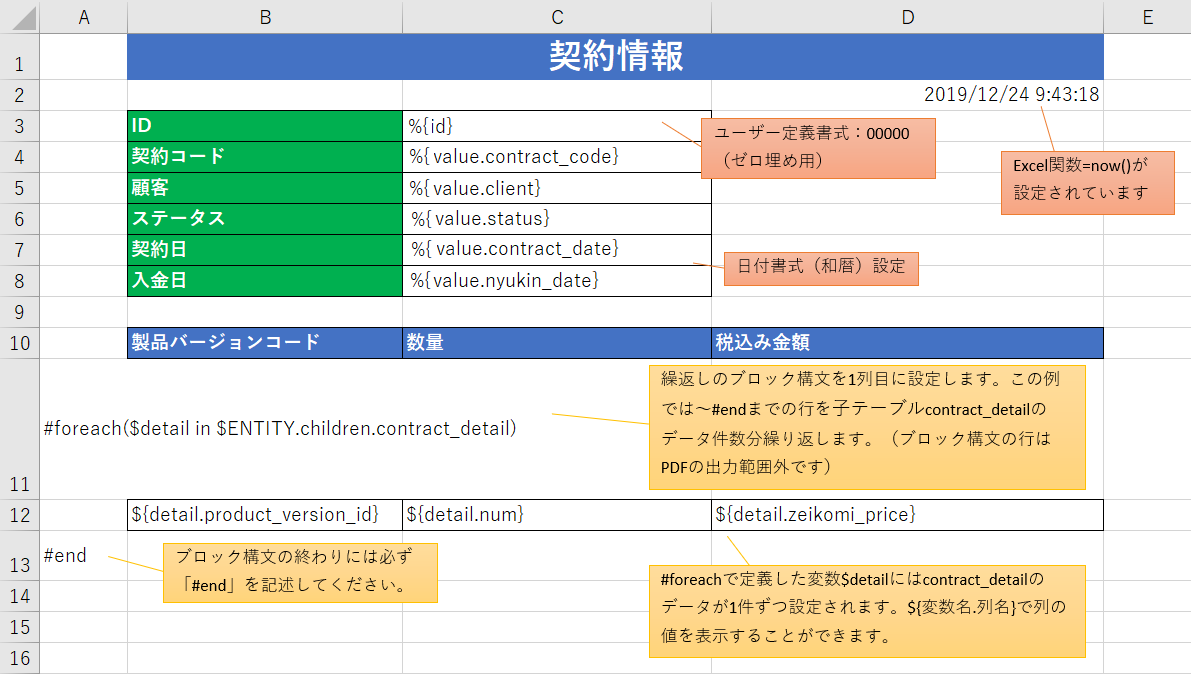
- Column A is a column dedicated to logic description. Write block syntax such as #if, #foreach, and #set.
* Example of template
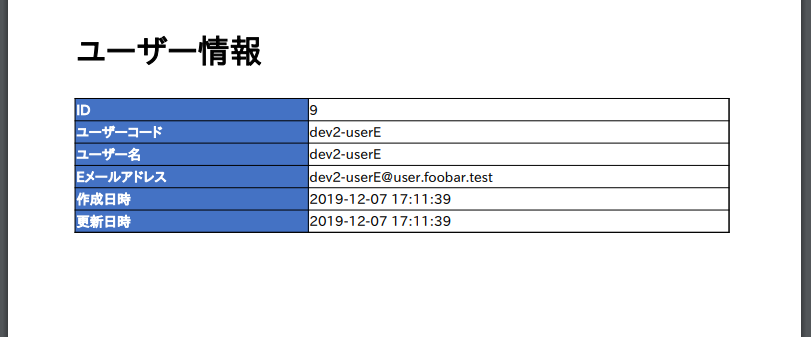
- This is the PDF of the result of outputting the above template.

Download sample template
[User Information] (https://exment.net/downloads/product/plugin/Docurain/user.xlsx) [Product version information] (https://exment.net/downloads/product/plugin/Docurain/product_version.xlsx) [Contract information] (https://exment.net/downloads/product/plugin/Docurain/contract.xlsx) ※In order to use the product version information and contract information, it is necessary to import the "template for product sales company" in advance.
About the error
An error may be displayed after executing the output.
In that case, please check the details of the error and take corrective action.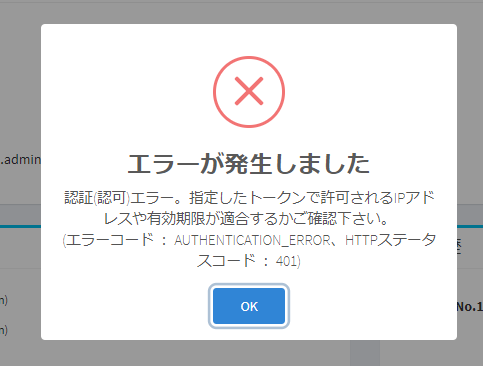
Of the errors, if the "HTTP status code" is "413", the service tolerance must be changed on the Docurain cloud service side.
In that case, please contact us from here.