
Two-factor authentication system settings
Exment supports two-step verification.
This section describes how to configure Exment on the system administration side.
Two-factor authentication method
Currently, the following two-step authentication methods are supported.
E-mail: After logging in with your ID / password, an e-mail with the authentication code will be sent to the registered e-mail address.
Enter the verification code in the form to complete the login.Google Authenticator: After login with ID / Password, two-factor authentication is performed using Google Authenticator.
Assumptions
Two-step authentication in Exment is not set by individual login users, but is set by the entire system.
For example, if the two-step authentication method is selected as "Google authentication system", all users will perform two-step authentication using the Google authentication system.When performing two-factor authentication with Exment, it is essential that the system be able to send e-mail.
This is the same even when the type of two-step verification is set to "Google Authenticator".If you set two-step authentication and set the authentication method to "Google Authenticator", when the user logs in for the first time, the e-mail for registering Google Authenticator to the registered e-mail address Send.

By clicking the link of the sent e-mail address, each user can set up 2-step verification.
By performing the setting once, the initial setting will not be performed for the second and subsequent times, and it will be a method that only inputs the authentication code from the Google authentication system.
Setting method
This is how to set up two-factor authentication.
- If the authentication method to use is "Google Authenticator", execute the following command from the root folder of the project.
composer require pragmarx/google2faSince v7.0.0, simplesoftwareio/simple-qrcode is installed automatically as a dependency of Exment, so you do not need to add it.
- Open the ".env" file from the root folder of the project, and add as follows.
※ how to edit the configuration file, for more information click here Please refer to.
EXMENT_LOGIN_USE_2FACTOR=trueIt will transition to the system setting screen with the administrator account.
First, configure the email settings. Enter the settings for sending email. See System Mail Settings for details.
After completing the settings, click “Submit” once to save.After that, "2 step authentication" is displayed at the bottom of the system setting screen.

Set the "Use two-factor authentication" item to "YES".
By setting to YES, the remaining setting items will be displayed.
In the "Default authentication method" item, select "Email" or "Google Authenticator" for the method used for two-step authentication.
Click the "Send Authentication Code" button to send an authentication code to use the two-step verification to the currently logged in account.
Enter the authentication code in the sent e-mail in the "Authentication code" field.

※When clicking the "Send Authentication Code" button, an error like the image below may occur.
This error occurs when updating from a version lower than v1.4.0.
In that case, follow these steps to import the email template.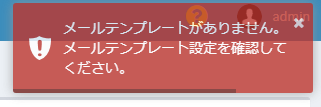
※In addition, an error like the image below may occur.
Occurs when the e-mail transmission settings are not performed properly. In that case, make the correct settings according to the system mail settings.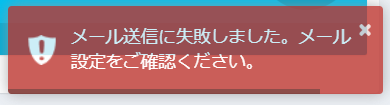
- Then click "Send" to save the settings.
Disable setting
If you want to forcibly disable 2-step verification for any reason, please do the following settings.
- Open the ".env" file from the project folder and add as follows.
※ how to edit the configuration file, for more information click here Please refer to.
EXMENT_LOGIN_USE_2FACTOR=falseBy performing this setting, even if you set "Use two-factor authentication" on the screen, two-factor authentication will be disabled.