
Data registration
Displays a form for creating and editing data in Exment.
Items displayed on the form screen are determined by the settings of Custom column setting, custom form, and Related table.
If the display is not as expected, you need to configure the settings on the above page.
Functions list
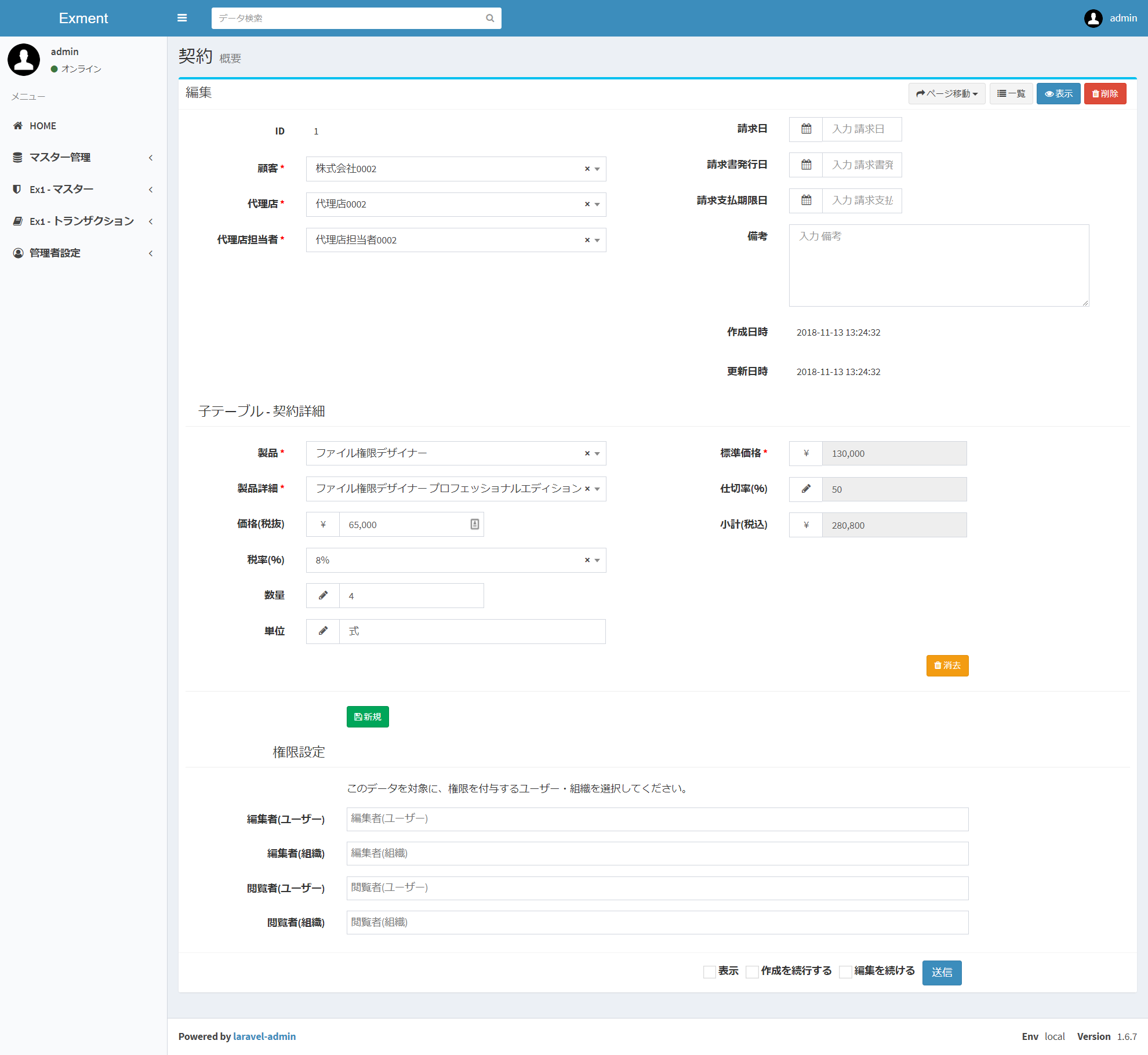
"Move to page" button:
Switches to the screen for changing the settings of the currently displayed custom table."List" button::
Switches to the data list screen.
※From v7.1.0, you can also go back with the [← Back to the list] button on the right of the title row. See here."Display" button:
Switch to the screen for browsing data."Delete" button:
Deletes thedisplayed data.
※The displayed data cannot be deleted.Form item:
Change the value of the data.
Items displayed on the form screen are determined by the settings of Custom column setting, custom form, and Related table.
If the display is not as expected, you need to configure the settings on the above page.Child table:
If you set 1: n or n: n in Related Table, you can also add / change the data of the table set in Related Table.
detail of function
Child table
If you set 1: n or n: n in Related Table, you can also add / change the data of the table set in Related Table. Example: If the displayed table item is "Contract" and the child table is "Contract Details", the billing date and customer information can be registered, and at the same time, the detail data of the contract can be added or changed. 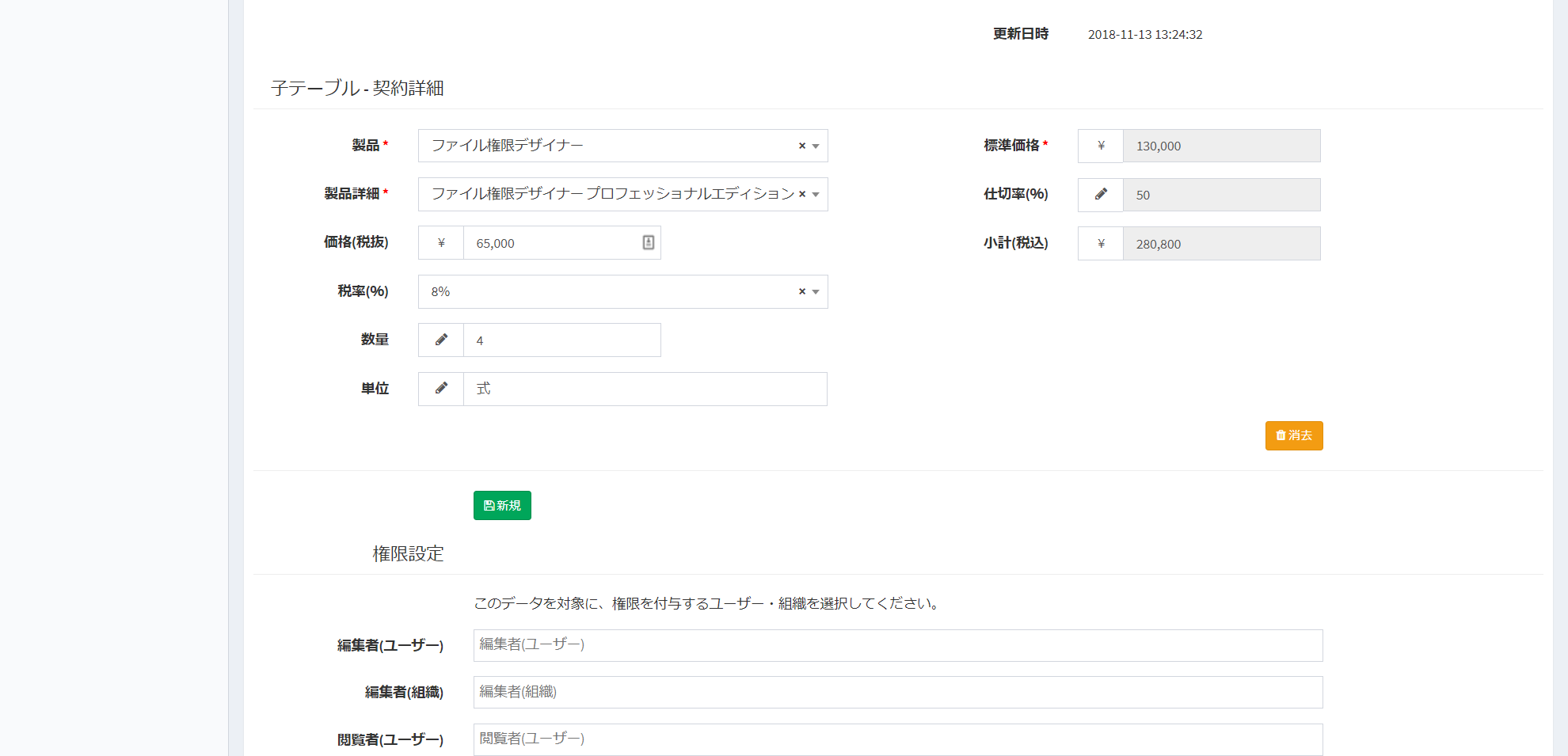
※There are two ways to display child table data: "Normal form format" and "Table format".
Change the format on the custom form screen.
"New" button:
Add one child table data."Delete button":
Delete the data of the selected child table.
Data Submit Redirect

Checkboxes appears to the left of the save button.
By checking this checkbox, you can change the page that will be displayed after saving the data.
- List : Transition to the list page of that data. *Note: Even if no checks are performed, you will still transition to the list page.
- View : Transition to the Detail page of that data.
- Continue creating : Transition to the Create page of that data.
- Continue editing : Transition to the Edit page of that data.
* After saving with the "Continue creating" or "Continue editing" checkbox selected, when the form is displayed again, the "Continue creating" or "Continue editing" checkbox will be checked by default.
* Starting from v3.9.1, you can now specify default values for checks. For more details, please refer to this page.