
Login settings
Make various login settings when logging in to Exment.
Please check here for settings and explanations related to SSO.
Two-step certification
Exment supports two-step authentication.
After entering your user information and logging in, you will be able to access the Exment by entering the code sent by email or the Google Authenticator.
※2-step authentication can be used when the login method is "Standard" or "LDAP".
Login setting management method
- The system administrator enters the following URL. http(s)😕/(Exment URL)/login_setting
- You will be able to access by changing the "system settings" described above.
Note: the URLs are for the default without "/admin" (a site newly installed with v7.2.1 or later). If
ADMIN_ROUTE_PREFIXin.envhas a value (an older site has "admin"), add it after the URL of the site (e.g.http(s)://(Exment URL)/admin/oauth/token). For details, see Change / delete "admin" included in URL.
- From v7.1.0, you can also open it from "Admin Setting" > "Login Setting" in the left menu.
- In v7.0 and earlier, "Login Setting" is not displayed in the menu by default. To add it, open the "Admin Setting" > "Menu" page and select the menu type "System Menu". The target "Login Setting" will be displayed. Select it and save it.
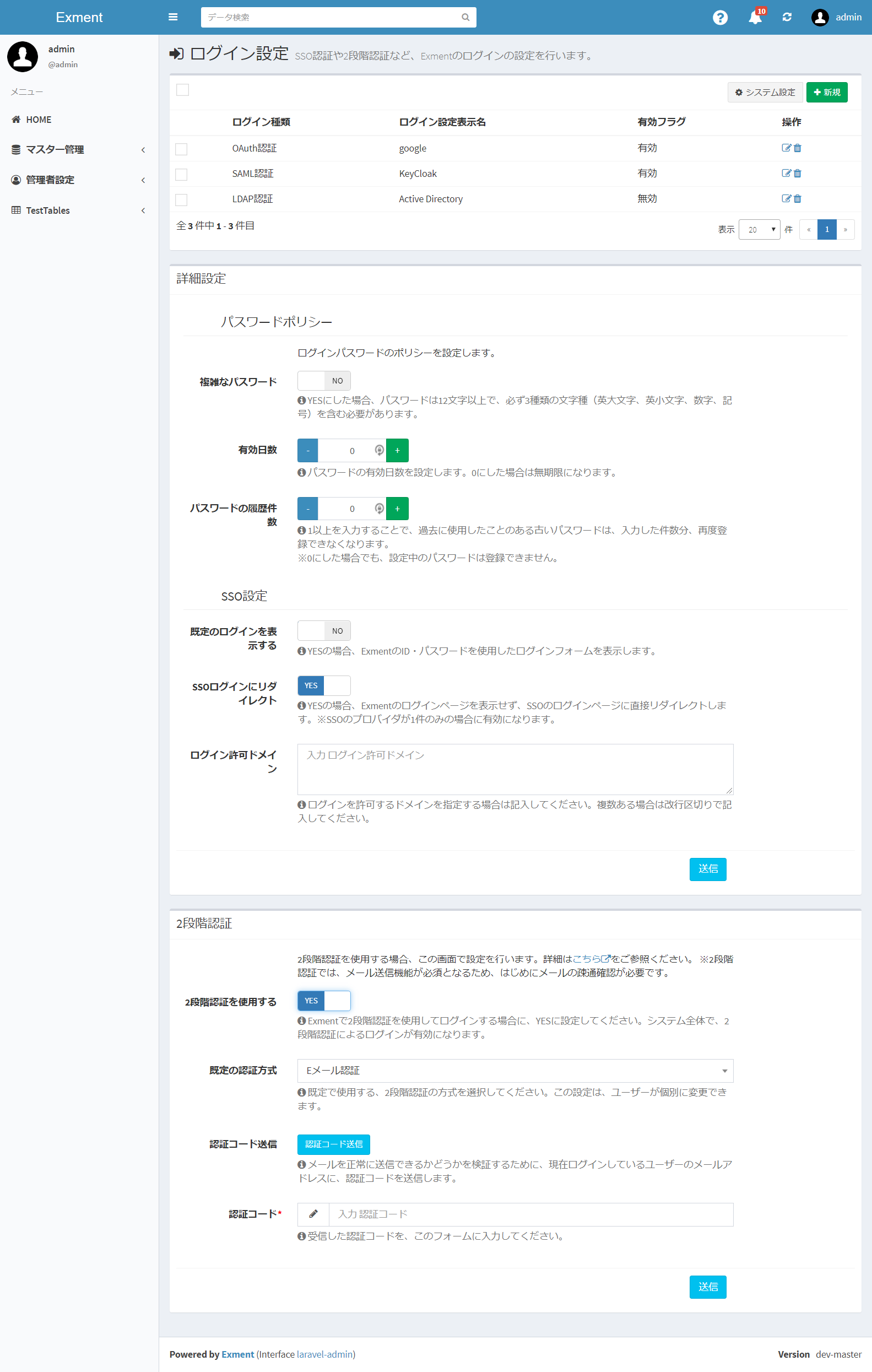
To manage 2-step authentication, follow the procedure on the following page to make the settings.
Password policy settings
Set rules related to login passwords.

Complex password
- If the setting is YES, you need to set a password of 12 characters or more including 3 or more character types (half-width uppercase letters, half-width lowercase letters, half-width numbers, half-width symbols).
- The initial value is "NO".
Effective days
- If you log in for the first time after the specified number of days, you will be directed to the password change screen.
Please change your password and then log in again. - If you set the number of valid days to "0", the password will never expire.
- The initial value is "0".
Have the password changed when logging in for the first time
- If set to YES, the screen for changing the password will be displayed when the user logs in for the first time.
- This will be valid for users who have newly registered or reset their password after setting this setting to YES.
- The setting will not be reflected to users who newly registered before setting this setting to YES.
- The initial value is "NO".
Number of password history records
- Restrict the reuse of recently used passwords.
If the new password is compared with the password for the latest to the number of history records and they are the same, an error will occur. - If the number of history records is set to "0", it will not be compared.
- The initial value is "0".
Note
- "Complex password" and "Password history" are applied when the user sets the password by himself / herself on the user setting screen or password reset screen.
Not applicable if set by the system administrator.
Other
If you update from less than v3.3.0 to v3.3.0 or higher and log in with a provider that includes "dot (.)" In the user code, an error may occur.
In that case, take the following actions.- Transit to the edit screen of the "User Code" column in "Custom Column Settings" of the "User" table.
- In the "Available characters" option, check "Dot" and save.
In the default operation, even if you close the browser while logged in, you will remain logged in until a certain period of time (120 minutes) elapses.
In v3.6.0 or later, if you want to automatically log out when you close the browser while logged in, open the ".env" file and add as follows.
※For details on how to edit the configuration file, refer to here.
EXMENT_SESSION_EXPIRE_ON_CLOSE=truePassword reset command
Password reset can be performed by command.
- The system administrator executes the following command on the console.
php artisan exment:resetpassword --email=foobar@test.com --password=P@ssw0rd!- By executing the above command, set the password "P@ssw0rd!" To the user whose email address is "foobar@test.com".
Command arguments
exment:resetpassword {--id=} {--email=} {--user_code=} {--password=} {--random=0} {--send=0} {--reset_first_login=0}Arguments: User specified
※One of the following arguments is required. If more than one of the following arguments is selected, the search will be performed in the order of priority of id> email> user_code.
id
The login ID of the target user.
email
The email address of the target user.
user_code
The user code of the target user.
Arguments: Password
※Specify either "password" or "random = 1".
If both are entered, the "password" argument takes precedence.
password
Specify the password character string to be changed.
random
Specify 1 to randomly create the password string.
0 if not specified.
Arguments: Optional
send
If you want to send the changed password by e-mail to the target user, specify 1. 0 if not specified.
reset_first_login
After changing the password, the screen for changing the password will be displayed when the user logs in for the first time. 0 if not specified.
※Regardless of this option specified, if "Change password at first login" is set to YES in the login settings, the screen for changing the password will be displayed when the user logs in for the first time.
Notices
- If "random = 1" is specified in the argument and "send = 1" is not specified, the changed password will be displayed on the console after the password is reset.
Command execution example
# Example: Reset by specifying password for user with id1
php artisan exment:resetpassword --id=1 --password=P@ssw0rd!

# Example: Set a random password for the user with user code "user1" and send an email
php artisan exment:resetpassword --user_code=user1 --random=1 --send=1

#Example: Set a random password for the user with email address "foobar@test.com"
php artisan exment:resetpassword --email=foobar@test.com --random=1
I have reset my password. New password: XXXXXXXXXX #The changed password is output to the console