
Data list tools
The display and in-place editing features available on the list of data screen.
Nothing has to be configured - they are there as soon as a data list is opened.

The toolbar buttons
Buttons sit at the top right of the list, to the left of the view picker.

From the left: [Select columns to show], [Pin columns], [Group rows], [Density], [Auto refresh]. From v7.1.0, the [Excel mode] button is also shown.
These settings belong to the person using them. The view is not changed, so nobody else's screen is affected.
[Pin columns] and [Density] are stored in the browser and survive closing it.
[Group rows] and [Auto refresh] are stored in the browser until the tab is closed.
[Select columns to show] is kept only in the address (URL) of the list (_columns_), not in the browser. It is gone when you open the list again from the menu or switch the view, and a copied address shows the same columns. Pressing [Search] in [Filter] also drops the columns you chose.
Select columns to show
Chooses which of the view's columns are drawn on screen.
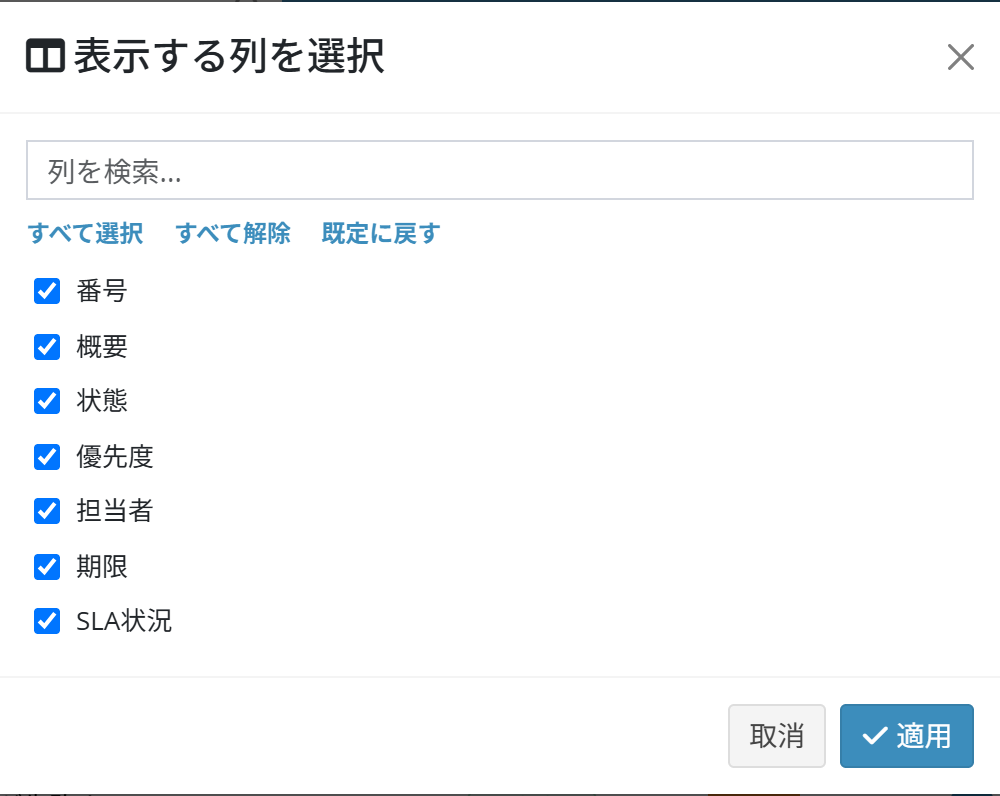
- Type in the box at the top to filter the column names.
- [Select all], [Clear all] and [Reset to default] act on every column at once.
- [Apply] to use the choice, [Cancel] to close.
At least one column must stay checked.
Hiding a column never deletes data - [Reset to default] brings everything back.
Pin columns
Keeps the chosen columns against the left edge while the table scrolls sideways, so a wide table never loses track of which row is which.
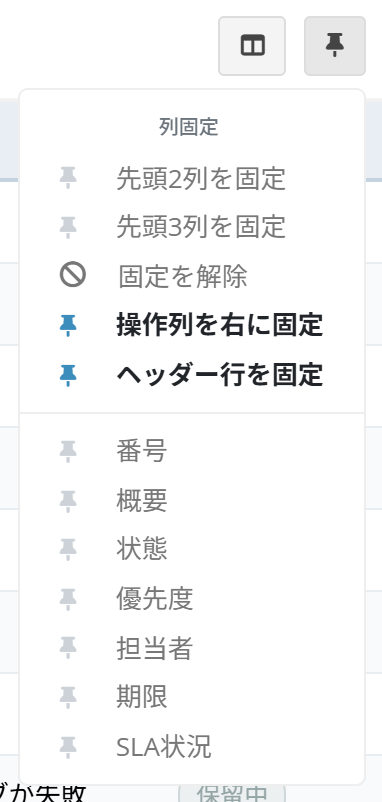
| Item | Content |
|---|---|
| Pin first 2 columns / Pin first 3 columns | Common combinations in one click |
| Unpin all | Releases every pin |
| Pin the action column | Keeps the action column always visible. On by default. In v7.0 its name is "Pin action column to the right" |
| Pin header row | Keeps the header visible while scrolling down. On by default |
| (list of columns) | Pin columns one by one |
If the screen is too narrow, some columns are left unpinned and a message says so.
Group rows
Groups the rows of the current page by the value of one column.
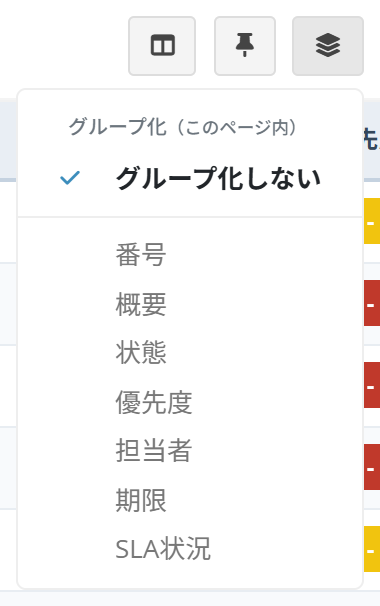
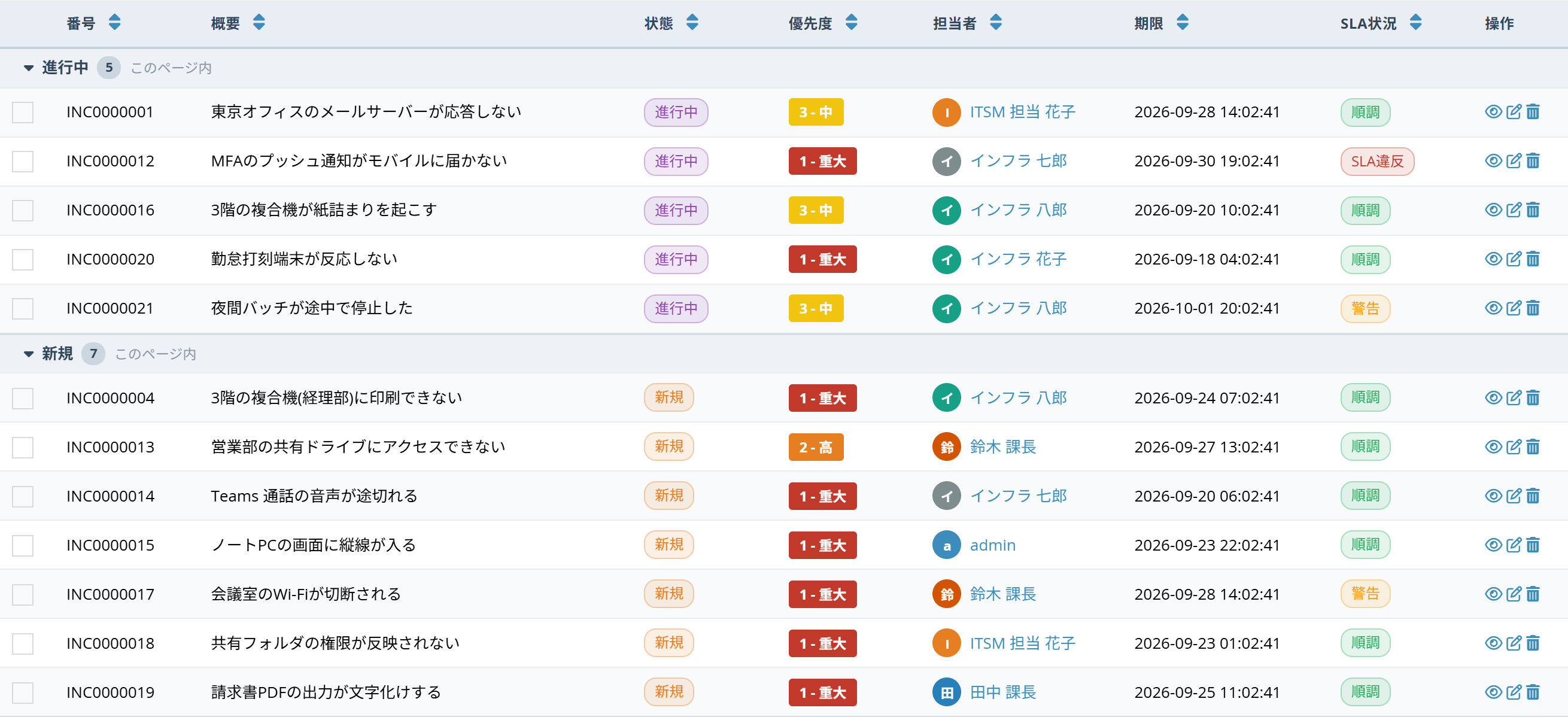
- Each group header carries the number of rows in it.
- The triangle on the left folds and unfolds a group.
- [No grouping] returns to the original order.
Why it says "this page only"
Grouping rearranges the rows already loaded on the page.
To summarise across all of the data, build an aggregate view instead.
Density
Changes the row height and whether text wraps inside a cell.
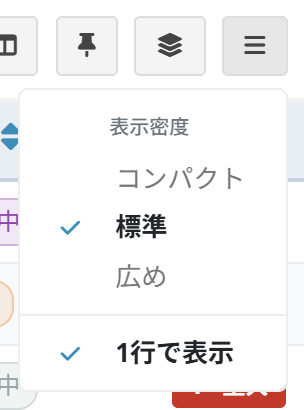
| Item | Content |
|---|---|
| Compact | Tighter rows - more of them fit on screen |
| Comfortable | The default height |
| Spacious | Taller rows, easier to read |
| Single line rows | Text is not wrapped; long values are cut off. On by default, and it works together with the three heights above |
Auto refresh
Reloads the list every so often, so a screen left open during shared work (a support queue, for instance) keeps showing the current state.
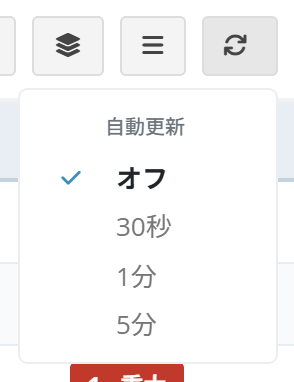
Off, 30 seconds, 1 minute or 5 minutes.
The setting is dropped when the tab is closed.
Working inside the table
※From v7.1.0, when the screen design is "Modern", the action column (show / edit / delete) is shown right after the checkbox (on the left of the table). In "Classic" it stays at the right end.
Inline editing (double click)
Double click a cell to change its value in place. Cells that can be edited show a pencil icon on hover.
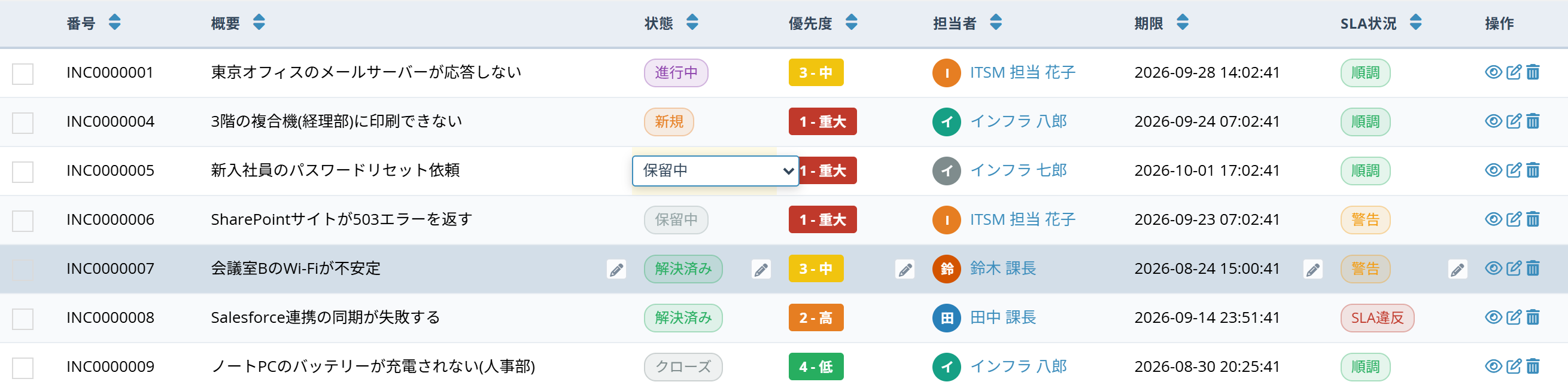
Choosing (or typing) a value saves it and repaints the cell.
| Column type | Editor |
|---|---|
| Choices, choices (value and label), YES/NO | A picker |
| Single line text, e-mail, URL | A text input |
| Integer, decimal, currency | A number input |
| Date, datetime | Exment's own calendar (date picker), the same as on the edit form |
These columns cannot be edited in place:
- Multi-select columns
- Columns computed by a formula, and columns that a formula uses as an input
- Columns that the record's own edit form does not let the user change
A table whose Edit action is turned off, and the trash view, show no pencil at all. The pencil does not appear either when the user has no edit right on the table.
The save obeys what the record's edit page obeys: the form's column settings, the "cannot change from display" setting, validation, a lock by a workflow, and the user's right on that record. The revision history is kept. A refused value is not saved, a message tells why, and the old display comes back.
Excel-like editing
Turn on [Excel mode] in the toolbar to select and edit cells with the keyboard, like in Excel (from v7.1.0). It is off by default. On / off is stored in the browser.
| Operation | Content |
|---|---|
| Click | Selects the cell (the data is not opened) |
| Arrow keys, Tab, Shift+Tab | Move the selection |
| Home, End (Ctrl+Home, Ctrl+End) | Go to the first / last cell of the row (of the table) |
| F2, Enter, double click, typing | Start editing the selected cell. Typing starts the edit with that character (IME input works too) |
| Delete, Backspace | Start editing with an empty value (the value is not cleared until you save with Enter) |
| Enter, Tab while editing | Save and move to the next cell |
| Esc while editing | Cancel the edit and put the old value back |
※When it is off, nothing changes (a click opens the data, a double click or the pencil edits a cell).
※Which cells can be edited and how they are saved (validation, permissions, workflow and so on) are the same as Inline editing. Only how an edit starts and ends is different.
Right click menu
Right clicking a row opens the actions available for that record.
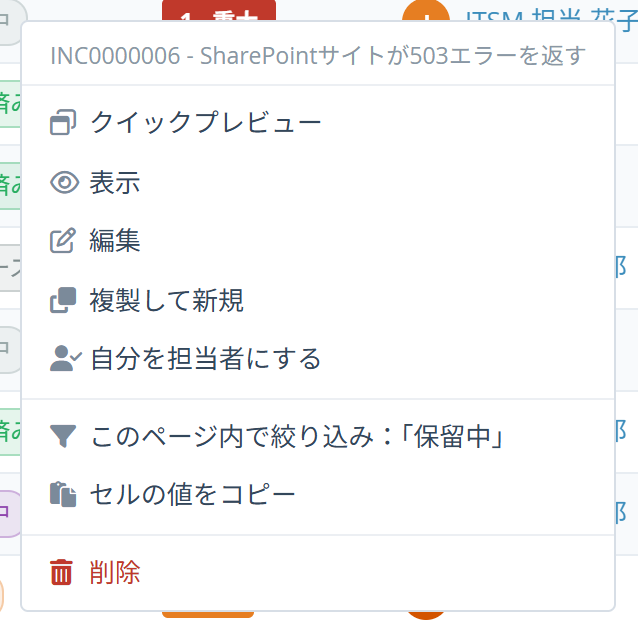
| Item | Content |
|---|---|
| Quick preview | Shows the record without leaving the list |
| View | Opens the detail screen |
| Edit | Opens the edit screen |
| Duplicate as new | Opens a new record prefilled from this row |
| Set me as ... | Puts the logged-in user into the assignee column |
| Filter within this page: "..." | Keeps only the rows with the same value as the clicked cell |
| Copy cell value | Copies the clicked cell to the clipboard |
| Delete | Deletes the record after a confirmation |
The menu is built once for the table from the user's rights, so a read-only visitor never sees delete or edit. The right on each record (a record locked by a workflow, for example) is checked when the command runs, and a refused command shows a message.
Shift + right click opens the browser's own menu instead.
Quick preview
Reads one record without leaving the list.
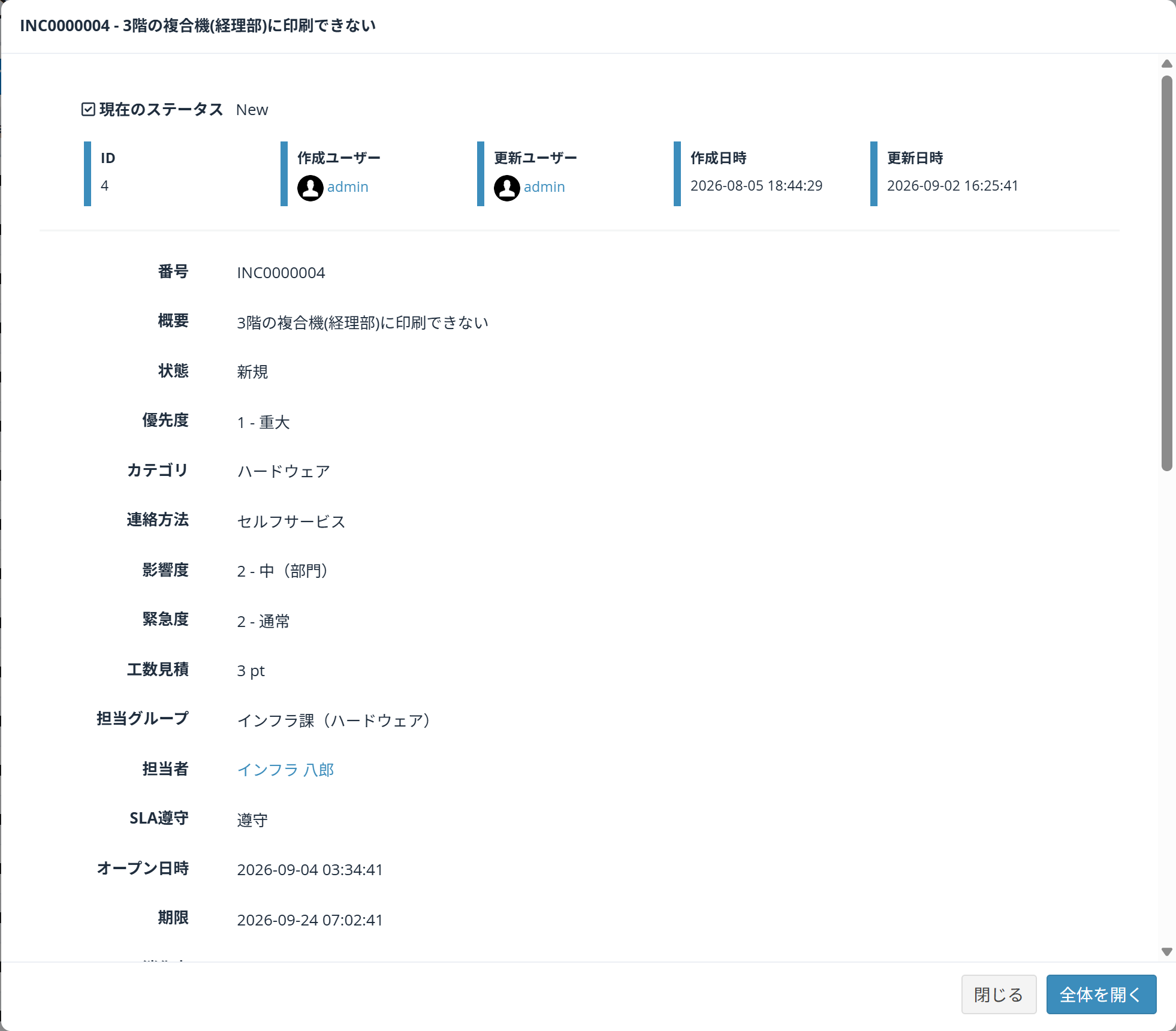
- [Open full page] goes to the normal detail screen.
- [Close] returns to the list with its scroll position and filter untouched.
Multi select and bulk actions
Ticking the checkboxes on the left changes the row colour and brings up a bar at the foot of the screen.
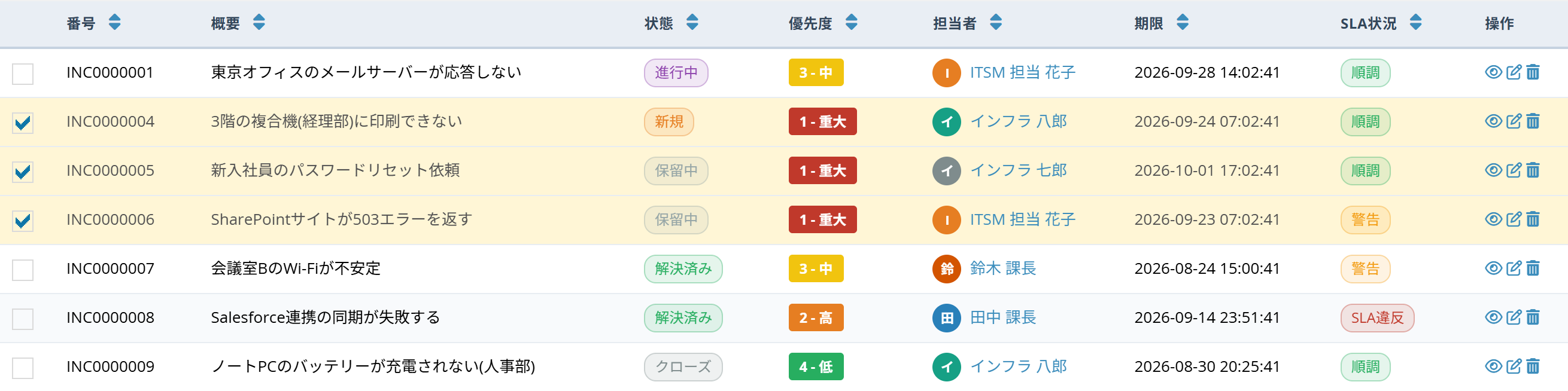

| Button | Content |
|---|---|
| Bulk edit | Changes the ticked rows together |
| CSV / Excel | Exports only the ticked rows (one button for each format) |
| Batch delete | Deletes the ticked rows |
| Clear selection | Unticks everything |
Which buttons appear depends on the permission and on the operation setting.
Run workflow
On a table with a workflow, you can run a workflow action on the ticked records at once (from v7.1.0).
Click [Run Workflow] in the batch menu of the list or in the bulk bar at the bottom.
- The actions you can run on the ticked records are listed with counts, such as "Approve (8 / 10 selected)". Choose an action, enter a comment or the next work users if needed, and click [Run].
- Each record is checked like the action button of its page (the user can see it, the action can be run at its status, it has not been run already) and run one by one. Records that cannot be run are skipped; at the end, the number of records run and skipped (with the reasons) is shown.
- Notifications, plugins and steps with several approvers work as when running one record. Up to 500 records can be run at a time.
※It is shown to users who can run an action on the data, even without the edit permission. It cannot be used in the trash.
※For workflows, see Workflow implementation.
Bulk edit
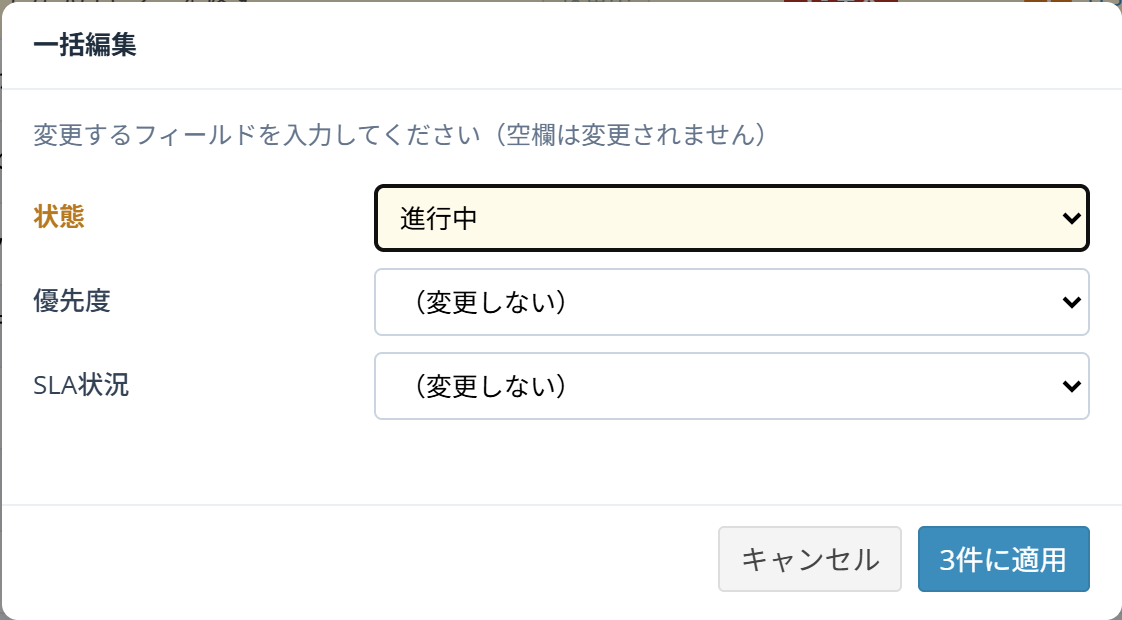
- Fill only the fields to change. Every field starts as "(no change)" and is left alone.
- Choosing the blank entry of a field that is not required clears that value in every ticked row. A required field cannot be blanked.
- [Apply to N rows] asks for confirmation and then updates.
- Progress is shown, and the number of successes and failures at the end.
Only columns with a picker are offered.
Each row is saved through the normal update path, so validation, workflow and revision history all behave as usual. Rows refused by a permission or a rule are counted as failures.
While a filter is on
When [Filter] is used, the conditions in force are drawn as chips above the table.

- The "x" on a chip removes that one condition.
- [Clear all] removes every condition.
"Filter within this page" from the right click menu shows a yellow strip instead.

- It says how many rows are hidden.
- [Clear filter] brings them back.
"Filter within this page" only looks at the rows on the current page. To filter across pages, use the [Filter] panel or the view's display condition.
About permissions
These features use the existing permissions.
- The list still shows only the data the logged-in user may read.
- Edit and delete entries are shown from the user's rights on the table. A record the user may not change (no right on that record, or locked by a workflow) is refused when the command runs, and nothing is saved.
- Inline editing and bulk edit obey what the record's edit page obeys (see "Inline editing" above); a record the user may not change is not updated.