
Mail template
Set the subject, body, etc. of the email when sending email from the system.
Management method
Page display
- From the left menu, select "Email template".
Or access the following URL.
http(s)😕/(Exment URL)/ mail
This will display the plugin screen.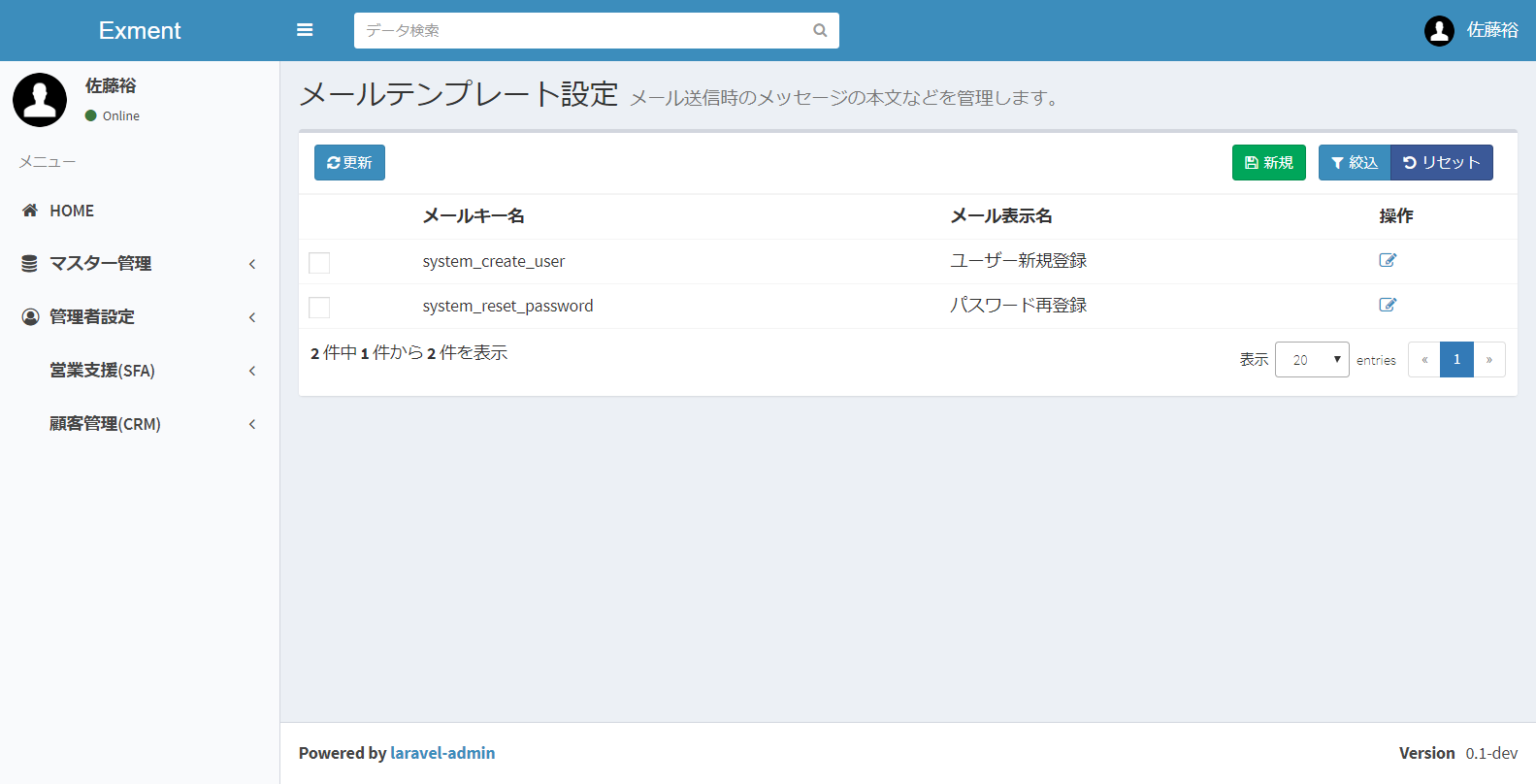
Note: the URLs are for the default without "/admin" (a site newly installed with v7.2.1 or later). If
ADMIN_ROUTE_PREFIXin.envhas a value (an older site has "admin"), add it after the URL of the site (e.g.http(s)://(Exment URL)/admin/oauth/token). For details, see Change / delete "admin" included in URL.
Add new template
On the "Email Template" screen, click the "New" button at the top right of the page.
The new mail template addition screen is displayed.

Enter the required information.

Save
After entering the settings, click “Save”.
Edit
If you want to edit a template, click the "Edit" link in the corresponding row. 
Delete
To delete a column, click the "Delete" link in the corresponding row.  ※ However, templates installed on the system cannot be deleted.
Variable rules
Variables can be used in "Email subject" and "Email body".
By using variables, registered data and system names can be added to the subject and body.
Variable list
Common
Check the following pages for common parameter variables.
Parameter variables
Destination user
| item | Description |
|---|---|
| ${user.user_name} | User name of the mail destination user |
| ${user.user_code} | User code of the mail destination user |
| ${user.email} | E-mail address of the e-mail destination user |
Password reset
It can be used only when sending a password reset e-mail.
| item | Description |
|---|---|
| ${system.password_reset_url} | System password reset URL |
| ${user.password} | Login password of the mail destination user |